
In this article
Three PC checks before your next tournament
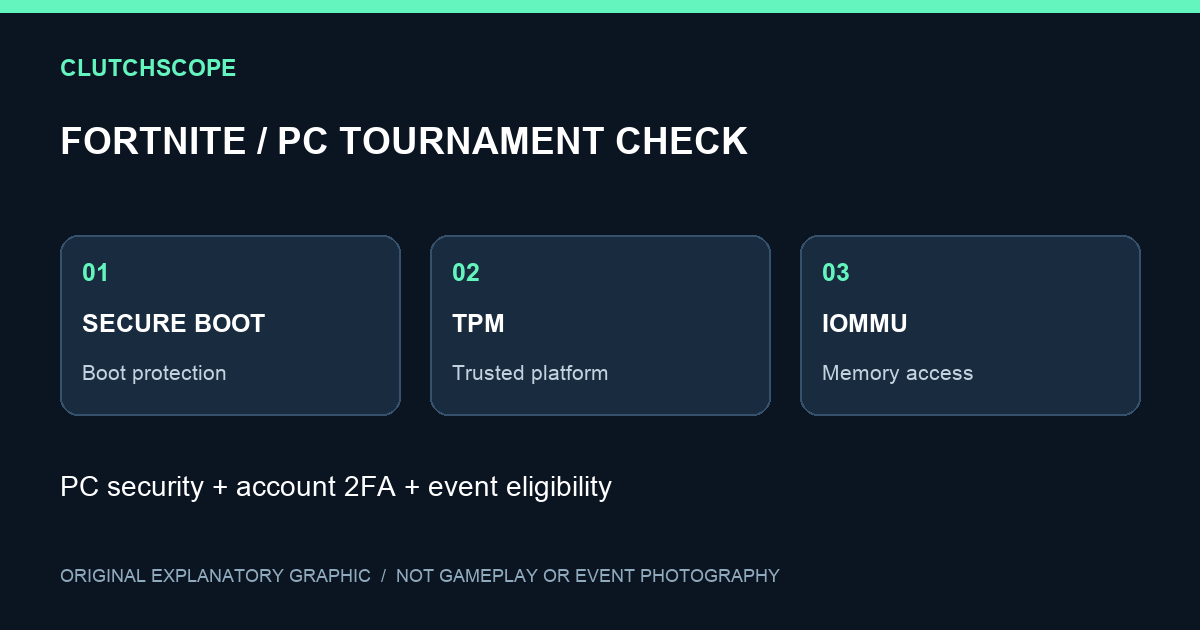
Fortnite requires Secure Boot, TPM and IOMMU to be enabled for PC tournament play. Epic expanded the requirement to all tournaments on February 19, 2026. Having two-factor authentication enabled on your Epic account does not replace these hardware security requirements.
With FNCS Solos Reload coming in November, this is worth checking before the first session. A player can meet an event’s competitive entry criteria and still have a PC security setting to resolve.
What each requirement does
Secure Boot protects the boot process. Epic explains that cheats can try to start before anti-cheat software; checking that bootloaders come from trusted sources helps close that route.
TPM is the trusted-platform security component named in Epic’s requirements. It is a separate requirement from Secure Boot: enabling one is not evidence that the other is ready.
IOMMU controls how hardware devices access system memory. Epic says it uses this protection to make it harder for cheat hardware to access Fortnite’s memory. It belongs on the checklist alongside Secure Boot and TPM, rather than being treated as an optional performance tweak.
These requirements concern the PC used to compete. 2FA protects the account, and remains a separate eligibility check.
Start with the state Windows actually reports
For Secure Boot, Epic’s support instructions give a straightforward first check: search for System Information in the Windows Start menu, open it, and look for Secure Boot State on the System Summary page. The value should read On.
If it does not, follow the Microsoft instructions linked from Epic’s Secure Boot support page. Epic’s anti-cheat announcement also links its TPM and IOMMU help routes. Firmware menus differ between PCs, so use the instructions for your machine rather than copying another player’s BIOS menu choices.
Epic says Windows 11-compatible PCs will likely meet the requirements already or be able to enable them without new hardware. That is a reason to check compatibility and settings first, not to buy replacement components simply because a tournament refuses entry.
Hardware readiness does not settle event eligibility
Epic’s current FNCS qualification guide lists hardware security alongside account, age and competitive requirements. It also warns that the exact criteria change by tournament and season.
Do not transplant a Division Cup rank or participation threshold into a different event. Use the rules linked in our November Solo Reload guide for that competition’s entry routes, and the event calendar for its regional date window. The PC checklist answers whether your machine is ready; the event rules answer whether you can enter.