In this article
UEFN now checks saved content for incompatible assets when you switch a project's brand. Fortnite 43.10 moves the workflow out of the old Selected Brand dropdown in Project Settings and into dedicated windows under Project → Change Brand.
Adding a brand and switching are different steps
For a project without a brand, Add Branded Content lets you browse available brands, read their details and rules, and choose one. The window is the place to check those conditions before introducing branded assets into an island.
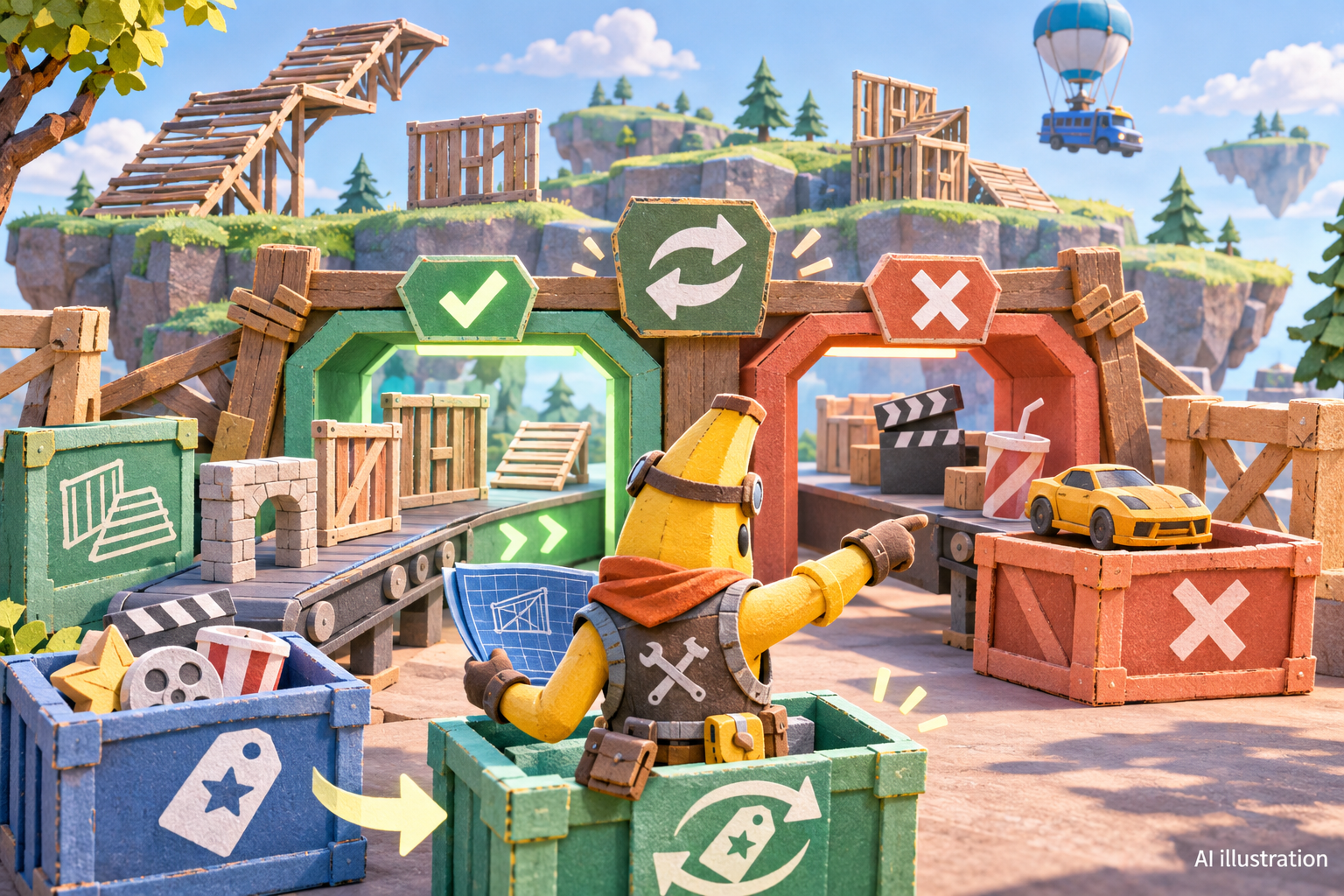
An already branded project instead opens Switch Brand. It checks saved content against the target brand's permitted assets and lets you remove conflicts inside the window before making the switch. A project that mixes content cannot assume every asset will survive a move to another brand.
Resolve the content conflicts before the switch
The practical change is where the cleanup happens: the new workflow brings incompatible saved assets into the switching step, rather than treating the brand as only a dropdown value. Review which content the target allows before removing anything your island depends on.
These windows concern a project's branded content, not its experimental-feature status. The same release separately introduced experimental camera modifiers, which still prevent publication on islands using them. Changing the brand does not remove that restriction.